8 tips for using AI agents on mobile with Termius
Whether you're exploring AI tools like Claude Code, Gemini, or OpenCode, or already use them daily, your phone can be a surprisingly capable workstation. You just need to set it up right.
Here are eight tweaks that can improve your experience with Termius.
1. Keep sessions alive across network drops
Network changes interrupt terminal sessions at the worst moment. On mobile, this happens constantly – you walk into an elevator, switch from Wi-Fi to mobile data, or your phone locks for thirty seconds. A few simple ways to avoid it:
→ Allow Termius to keep sessions alive in the background.
On iOS, enable Live Activities in Termius settings. On Android, disable battery optimization for Termius in your system settings.
→ Run your AI agent inside tmux.
The session keeps running on the server side, independent of your SSH connection. After reconnecting, run tmux attach to restore the exact terminal state.
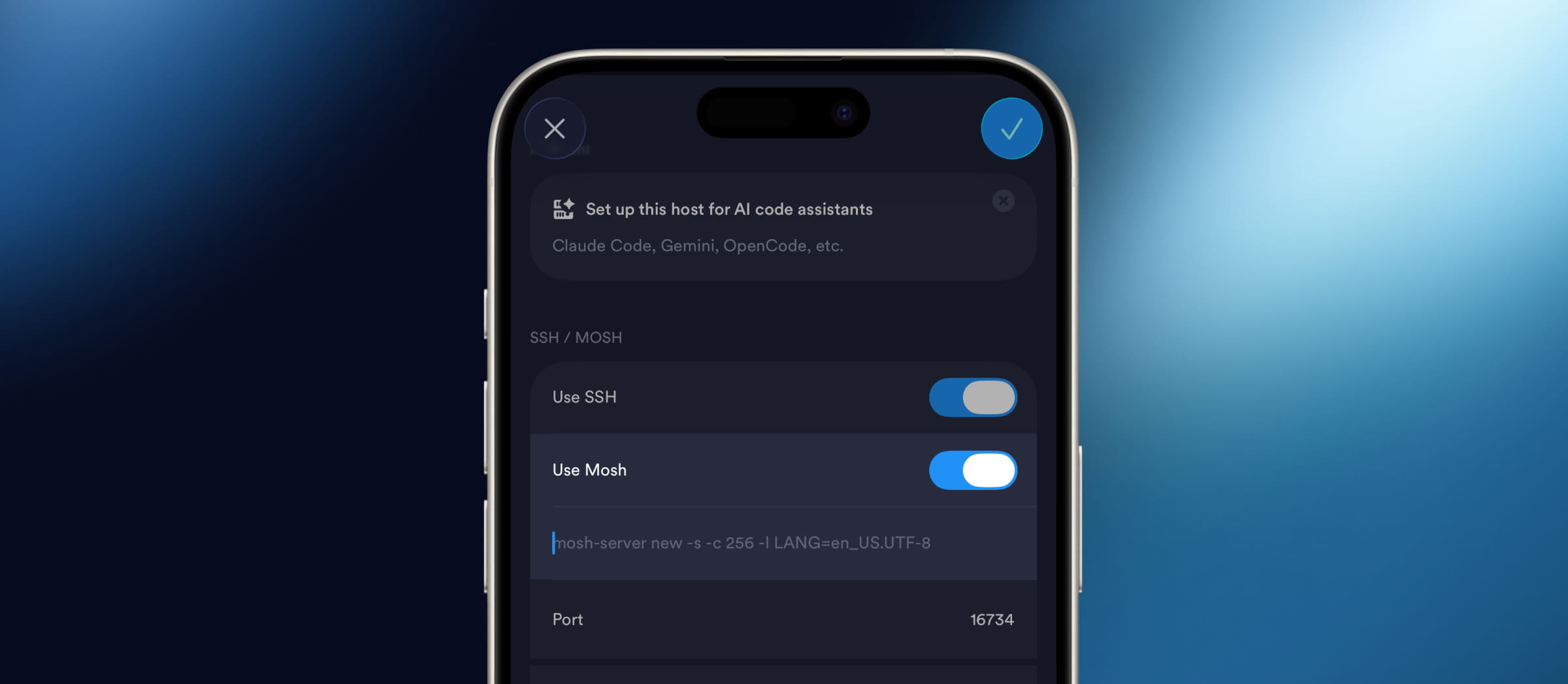
→ Set up Mosh on your server,
or ask your AI assistant to do it, then enable Mosh in your host details in Termius. This keeps your connection responsive when you switch between mobile data and Wi-Fi.
2. Auto-start your AI agent on connect
Every time you start working with your AI agent, you repeat the same steps: connect to a host, open your project folder, start your agent manually.
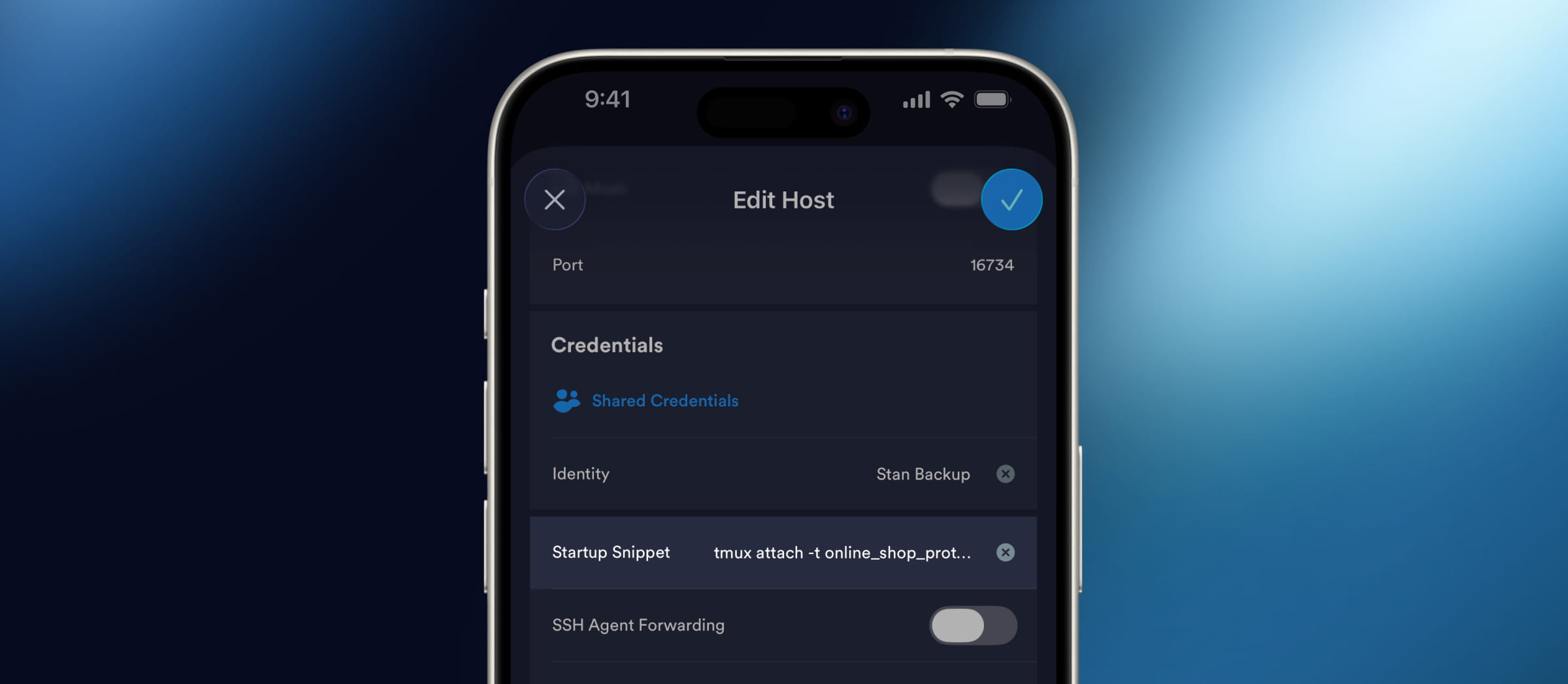
You can automate this by adding a Startup Command like cd ~/my-project/src && claude to your host. Now, when you connect, you're already inside your project folder with your agent running.
Pro tip: if you use tmux, add a Startup Command tmux attach -t <session_name> to restore your previous session automatically. This lets you continue your AI agent session when switching between desktop and mobile.
3. Upload images and files into your prompt with SFTP
Agents work better with visual context. Screenshots of bugs, design mockups, error logs, sample data – all of it sharpens the prompt.
Open an SFTP tab directly from your terminal without leaving the session. Upload or drag and drop screenshots, mockups, design references, or log files. Copy the file path and paste it into your AI agent prompt. Your agent can analyze the uploaded files and generate the required updates or a similar design.
4. Turn your phone into a live preview window
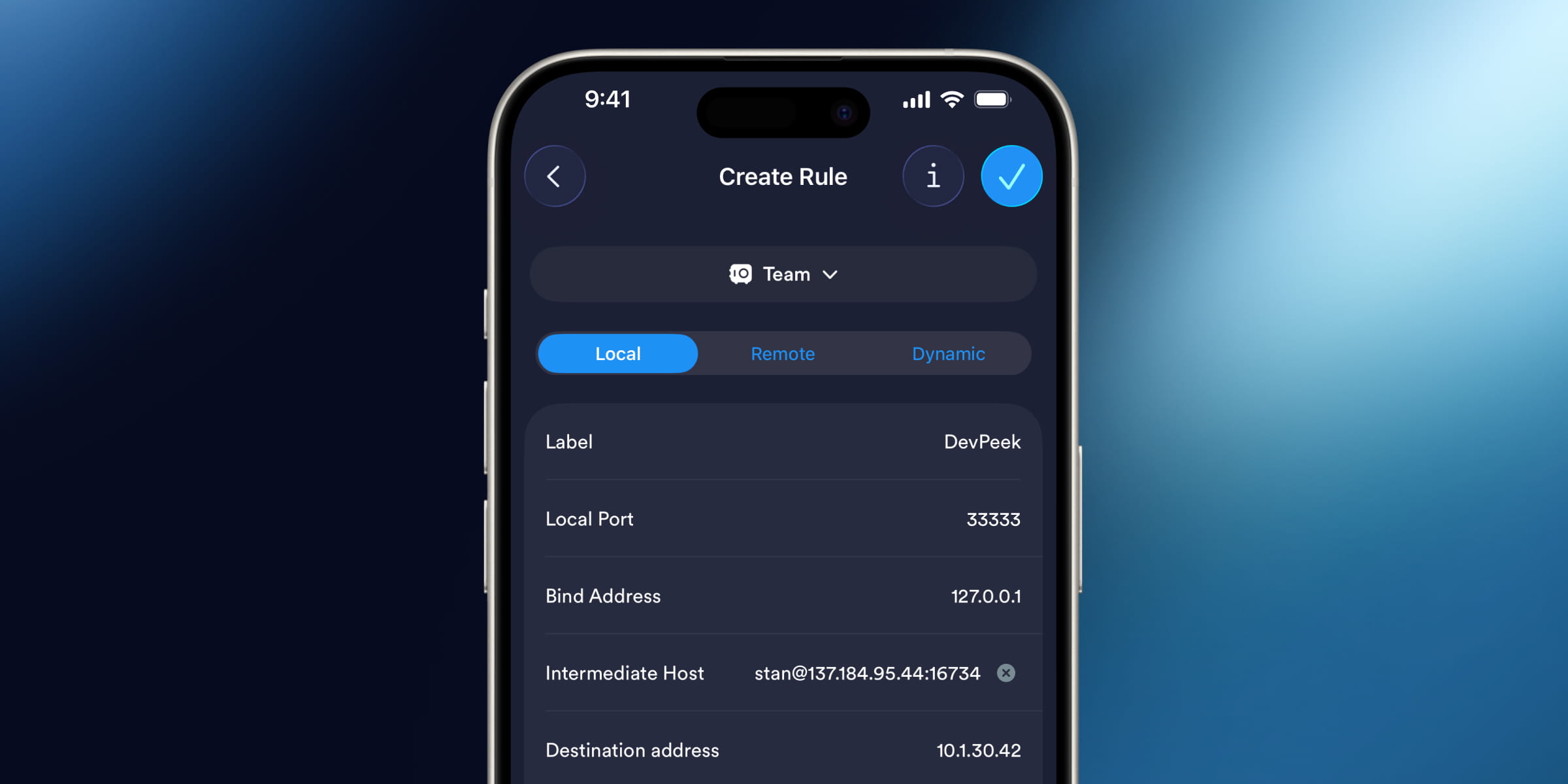
When your agent spins up a dev server — Vite, Next.js, a Flask app, whatever – it's running on the remote machine, not your phone. Port forwarding bridges the gap. In your host settings, add a local forwarding rule for the port your dev server uses, and Termius opens a secure tunnel through your SSH connection the moment you connect.
Open localhost:<port> in your phone's browser and you're looking at the live app. Hot reload still works, so the second the agent edits a file, the change appears on your screen. Screenshot it, paste the screenshot back into the next prompt, and you've closed the loop – build, review, iterate – without ever leaving the phone.
5. Customize the keyboard on mobile
AI workflows often require specific key combinations, such as Shift+Tab to switch operating modes. Default mobile keyboards are not designed for this.
In Termius, you can customize the shortcut bar to keep important actions right at your fingertips.
6. Dictate prompts hands-free
It's painful to type long prompts, especially while pacing around the room thinking out loud – which, if you do agentic coding, you probably are.
In Termius, switch input to Paste mode (above the shortcut bar), tap the mic on your keyboard, and dictate. The full prompt lands in your terminal in one shot.
7. Use terminal gestures instead of arrow keys
Hold Space (or long-press anywhere in the terminal) and drag in any direction to send arrow keys. Keep holding and Termius produces a series of keystrokes in the same direction, with three speed gears the further you drag.
Long-press + drag up/down – for arrow keys ↑↓
Hold Space + drag – to move the cursor ← →
8. Save repeated prompts as snippets
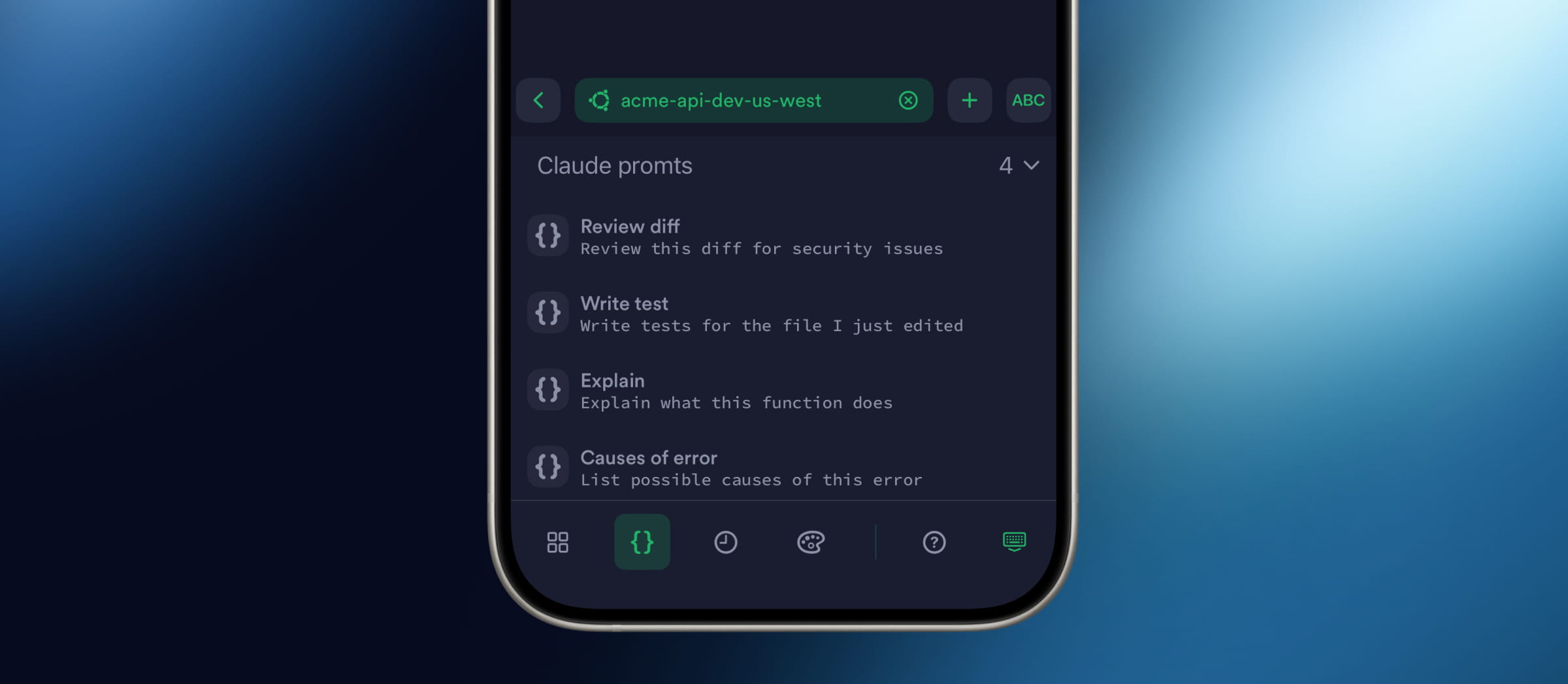
Some prompts you type over and over: "review this diff for security issues," "write tests for the file I just edited," "explain what this function does." On a phone, retyping them is the bottleneck.
Termius snippets let you save commands and fire them with a single tap. Build a small library of your most-used prompts and they're always one tap away – no typing, no autocorrect fights, no copy-paste from notes
Set these up once and your phone stops being a fallback and starts being a workstation.


Read more
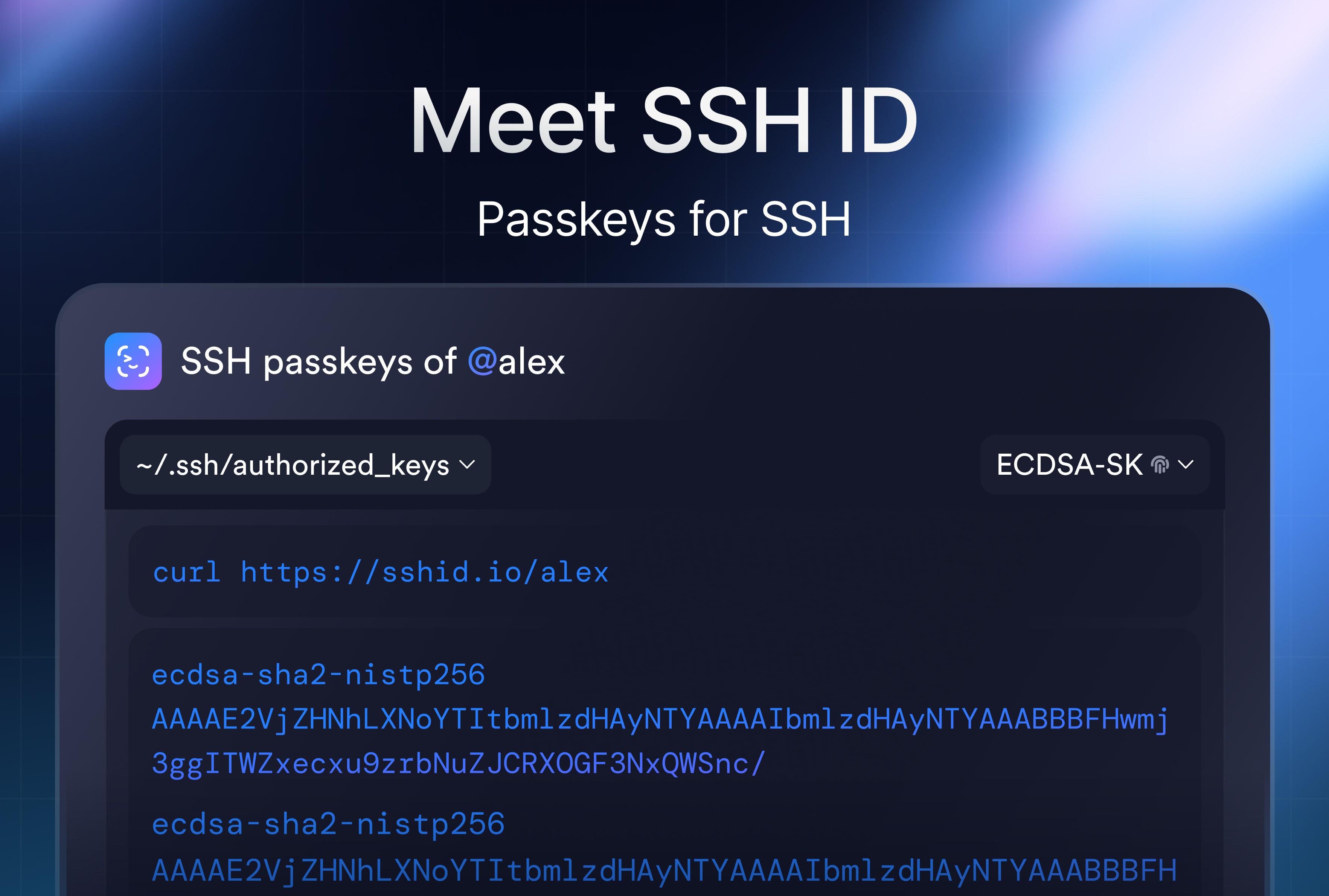
SSH ID – Passkeys for SSH
SSH ID is a passkey for SSH. This is a new tool inside Termius that combines the security of device-bound keys with the simplicity of sync.
Post-quantum cryptography
Termius has implemented post-quantum cryptography, ensuring your SSH sessions remain protected not just against today's threats but also against future attacks.
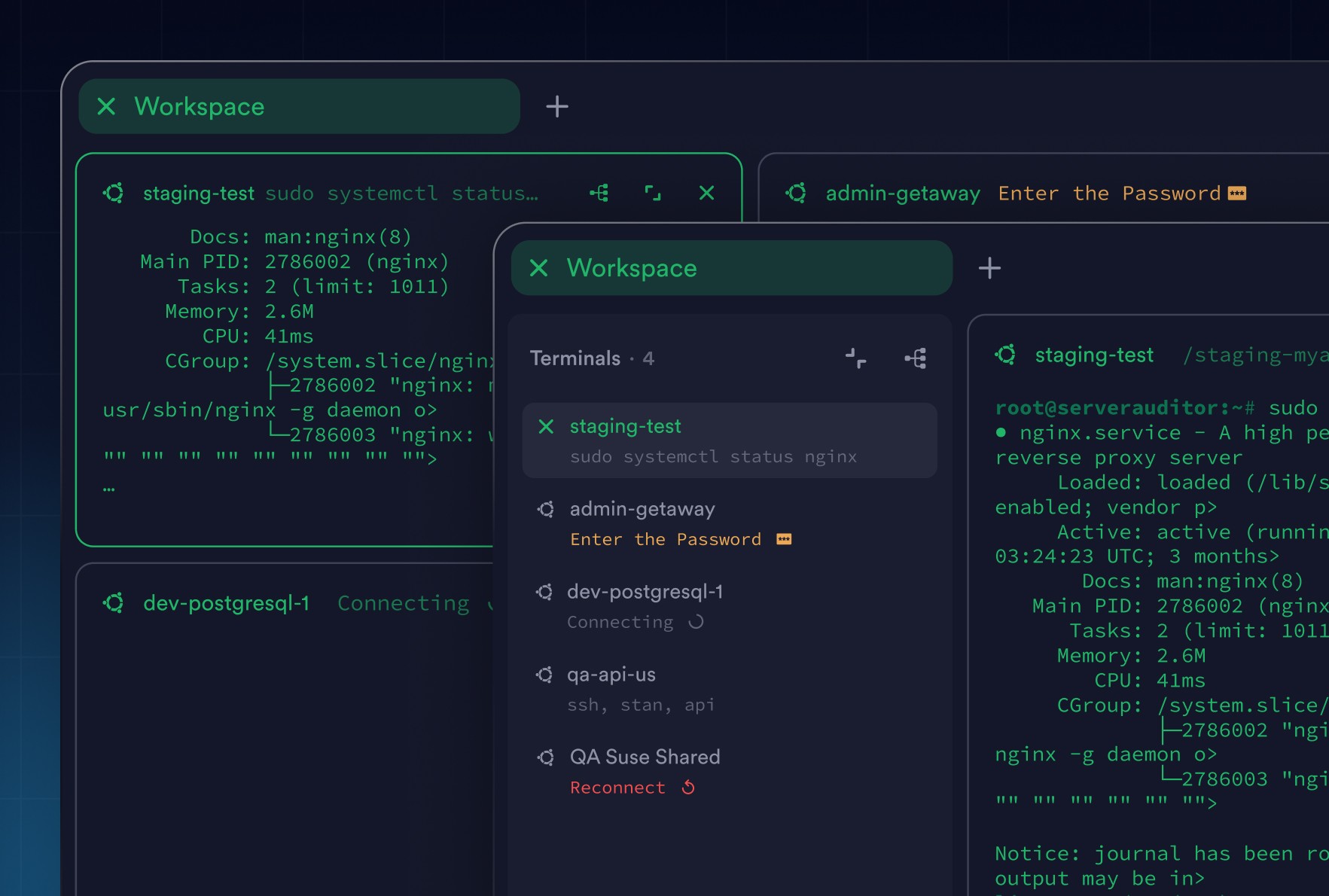
Workspaces: Focus Without Losing Context
Workspaces bring structure to terminal work. Group related sessions, stay focused, and keep full visibility across hosts without juggling tabs.